


How card payments work at DCX
This guide explains how to pay an invoice, what saving a card means and what to do if your payment confirmation has not arrived yet.
Paying an invoice, step by step
- Sign in to the client area and open the invoice you want to pay.
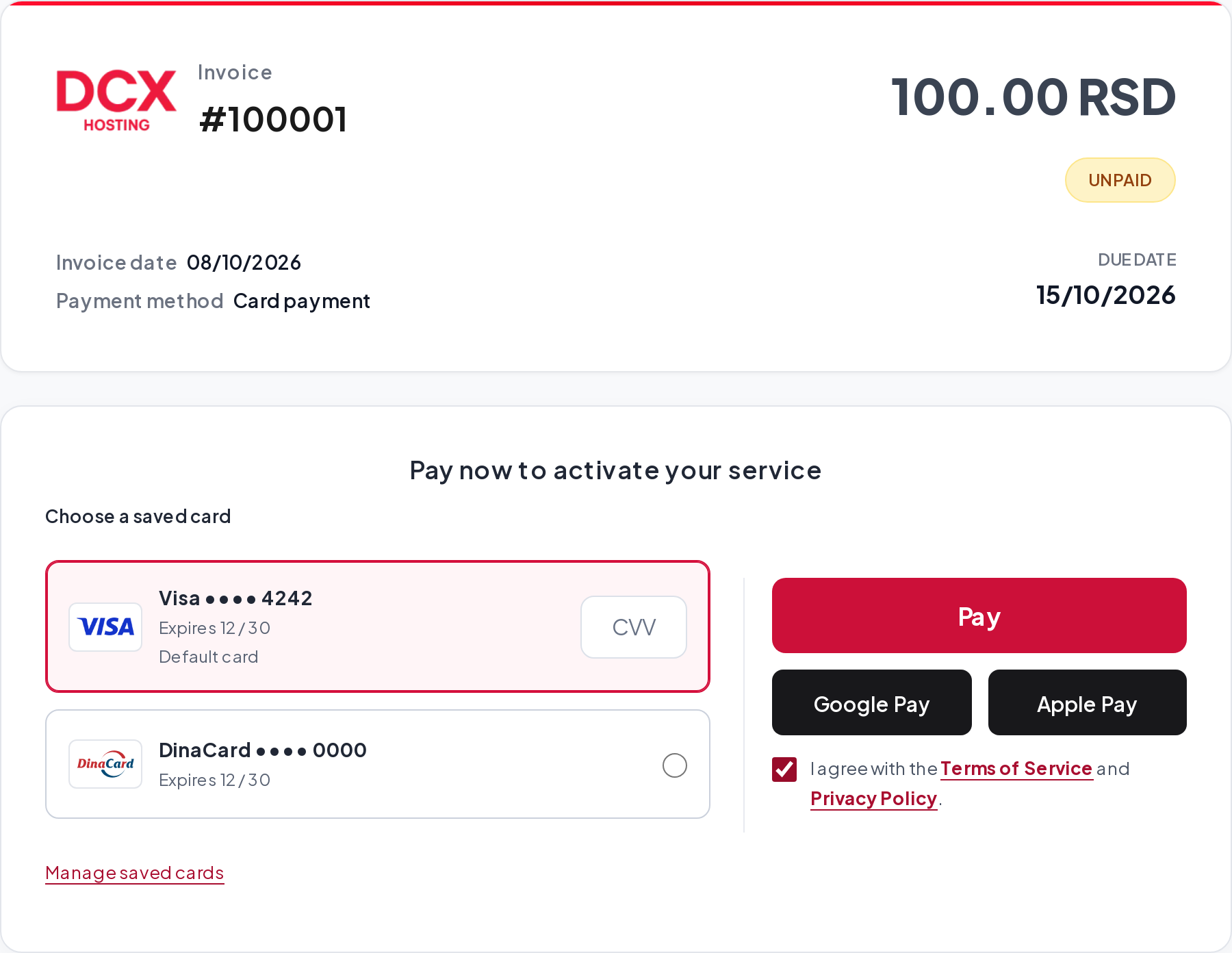
- Check the amount. Choose a saved card or enter the details of a new one.
- Read the terms, confirm your agreement and start the payment.
- If your bank requests additional confirmation, complete the bank’s authentication step.
- When you return to the invoice, check its payment status.
We process payments through the ChipCard/Payten system, with Raiffeisen Bank as the acquiring bank. The bank that issued your card decides whether to approve an individual transaction.
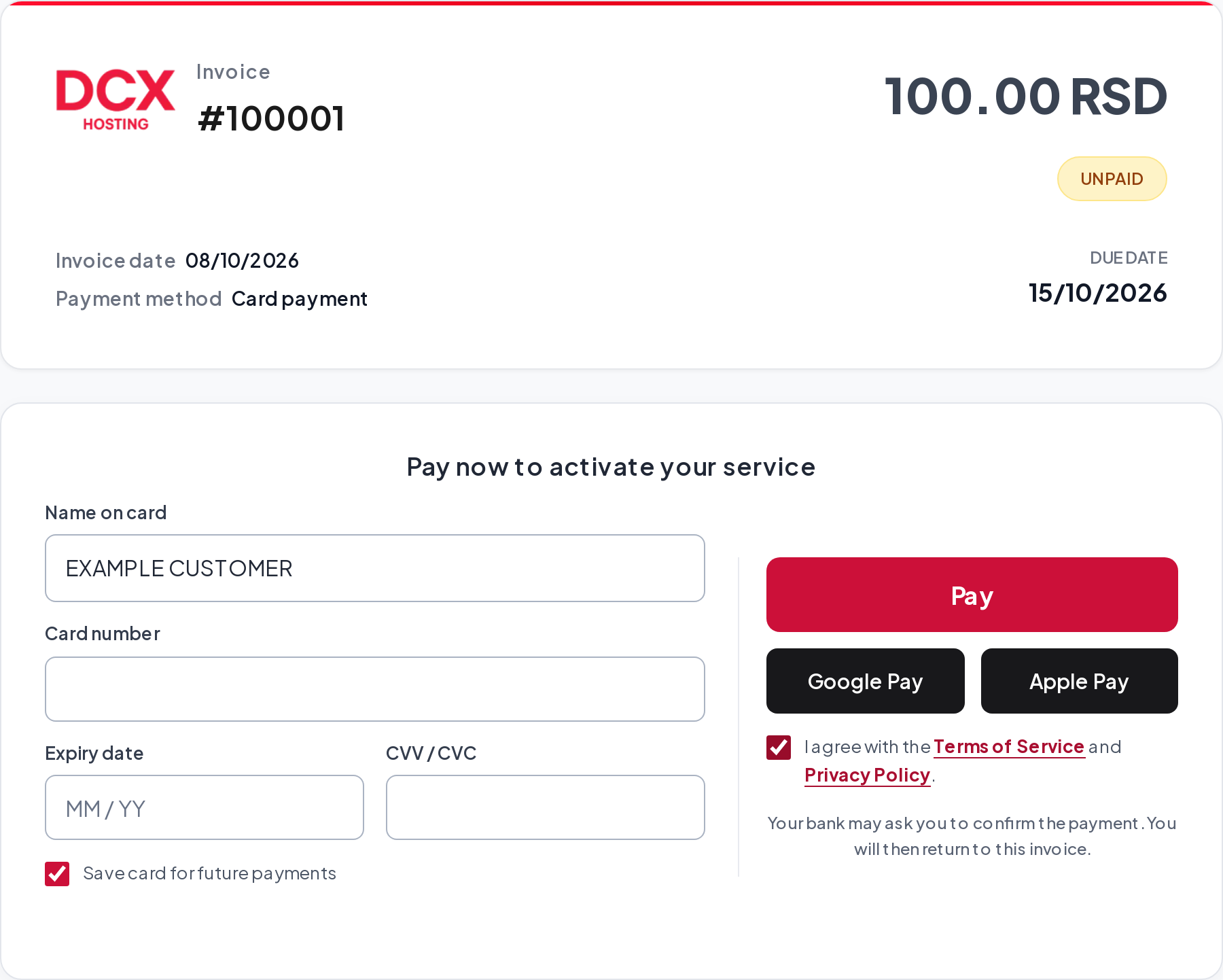
Which currency will I be charged in?
The card transaction is always in Serbian dinars, RSD. If your DCX invoice is in another currency, the payment section shows its RSD equivalent and the exchange rate used. We use middle exchange-rate data from the National Bank of Serbia for the calculation.
The amount and exchange rate are associated with a particular payment attempt. If you start a new attempt after the rate changes, the RSD amount may be different. Check the amount displayed before confirming your payment.
If your card account uses another currency, the amount your bank shows in that currency also depends on the card issuer’s conversion rules.
What does saving a card mean?
The processor holds the card details and issues a token that our integration uses for future payments. DCX saved-card records contain that identifier and recognition details, such as the last digits, card brand and expiry date. We do not store the full card number or CVV in those records.
This is the remote card-storage model supported by WHMCS. See the WHMCS documentation on tokenised storage.
You do not have to save a card. If you choose to do so, allow the process to finish and check that the card appears among the payment methods in your account. A successful payment and a successfully saved card are two separate confirmations.
Why am I asked for a CVV or bank confirmation again?
A saved card makes selection easier and reduces the details you need to enter. When you initiate a payment, we may ask for the CVV again and start a 3D Secure check. The CVV you enter is used for that attempt and is not stored for next time.
PCI DSS does not allow a CVV to be stored after authorisation, even when a customer wants to save a card for future payments. Read the official PCI SSC explanation.
The additional bank step depends on the card, bank and supported payment flow. Not every payment requires an SMS or app confirmation. Certain DinaCard cards currently use a transitional arrangement, explained in our DinaCard article.
How do we assess the risk of new orders?
Alongside bank checks, we use FraudLabs Pro to assess risk when receiving new orders. This additional layer helps us identify suspicious orders and reduce the risk of abuse. Order screening complements bank authorisation and 3D Secure authentication where supported. Read about order screening with FraudLabs Pro.
How do automatic renewals work?
When automatic charging is enabled for an account, the system can attempt to pay an eligible renewal of an existing service using a saved card. The billing system determines the schedule.
An automatic renewal requires an earlier, fully paid invoice for that same service or obligation. A previous payment for a different service on the account is not enough to authorise an automatic charge for a new order. The first invoice can also be settled using another payment method we offer.
An automatic renewal is processed without you opening the invoice or entering a CVV at that moment. A payment you initiate from the client area has its own confirmation process.
My payment is being checked. What should I do?
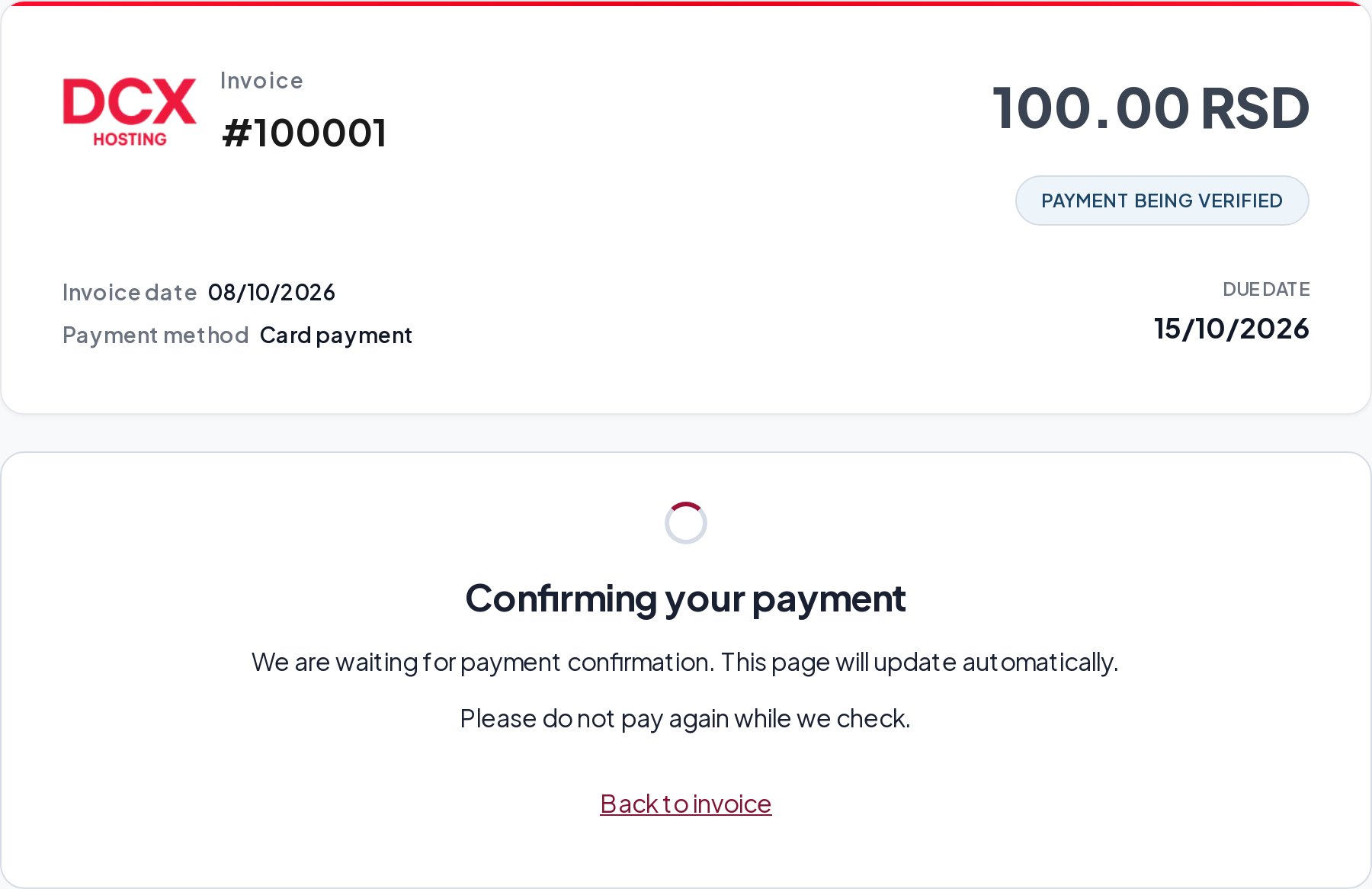
Do not repeat a payment while the previous attempt is being checked. Your return from the bank and the confirmation sent by the processor can reach our system at different times.
Follow the message on the invoice and use the available status check. If confirmation takes longer, contact support with the invoice number and approximate time of the attempt. That is enough for us to start investigating; do not send your full card number or CVV.
For some first payments, the bank may initially reserve the funds, with the final charge following acceptance of the order. A reservation and the final entry on your bank statement do not always appear at the same time.
My payment was declined or I cancelled it
Follow the message on your invoice. If the attempt is confirmed as unsuccessful, check your card details and limits, or choose another available payment method. If your bank shows a charge but the invoice is still unpaid, contact us before trying again.
Do not send card details through a support ticket, email or message. Use the official DCX contact channels for help.
Where are Apple Pay and Google Pay?
The wallet buttons on an invoice take you to the payment processor’s page. Available options depend on your device, browser, card and the processor’s support. If your preferred option is unavailable, you can use the card form or another offered payment method.
See also our Terms of Service, Privacy Policy and overview of the card-payment improvements.